How to Set a Stop Loss in TradingView
TradingView is where most prop firm traders do their thinking and MetaTrader is where they execute, and the gap between those two facts is where stop losses go missing. A stop drawn on a TradingView chart is an analysis tool. A stop that actually protects an account is an order on the broker's server. Knowing which one you have is the whole point of this page.
The mistake this page exists to prevent
Drawing a stop on the TradingView chart, feeling that the risk is handled, and then entering the trade in MT5 without a stop. The drawing cannot close a position, and the position has no limit. This is not a rare error; it is the normal consequence of analysing and executing on two different platforms.
The position tool: what it is good for
The Long Position and Short Position drawing tools are in the left toolbar. Placing one draws three levels: entry, stop and target. Drag the handles and TradingView recalculates the risk, the reward and the ratio between them, in both percentage and currency terms if you set the account size.
Select the position tool
Long Position or Short Position from the left toolbar. On most layouts there is also a keyboard shortcut, and the tool stays active until you deselect it.
Place the entry at your intended level
Drag the body of the drawing to the price you would actually enter at, not to where you wish you had entered.
Drag the stop to where the idea is wrong
The lower handle on a long. This is a structural decision — below the swing, beyond the range — and the tool is only recording it.
Drag the target to structure
The upper handle. Watch the ratio update as you move it. That readout is the fastest pre-trade check available anywhere.
Read the ratio before you size anything
If the setup offers a ratio that your win rate cannot support, the trade should not happen — and the tool has just told you so at no cost.
What it does not do
On a plain chart, the position tool is a drawing. It does not place an order, it does not send anything to a broker, and it will not close a position. That is true regardless of how precise your levels are.
TradingView can place real orders in two situations only:
- A connected broker integration. TradingView supports direct trading with a limited set of brokers. If your account is attached, the position tool and the order panel can interact with the live account.
- Alert-driven automation. An alert can carry a webhook payload to an external service that places the order. This is real, but it is a system you have built and are responsible for, not a feature of the chart.
Everything else is analysis. That is a perfectly good use of TradingView — it just is not risk management on its own.
How this plays out on a prop firm evaluation
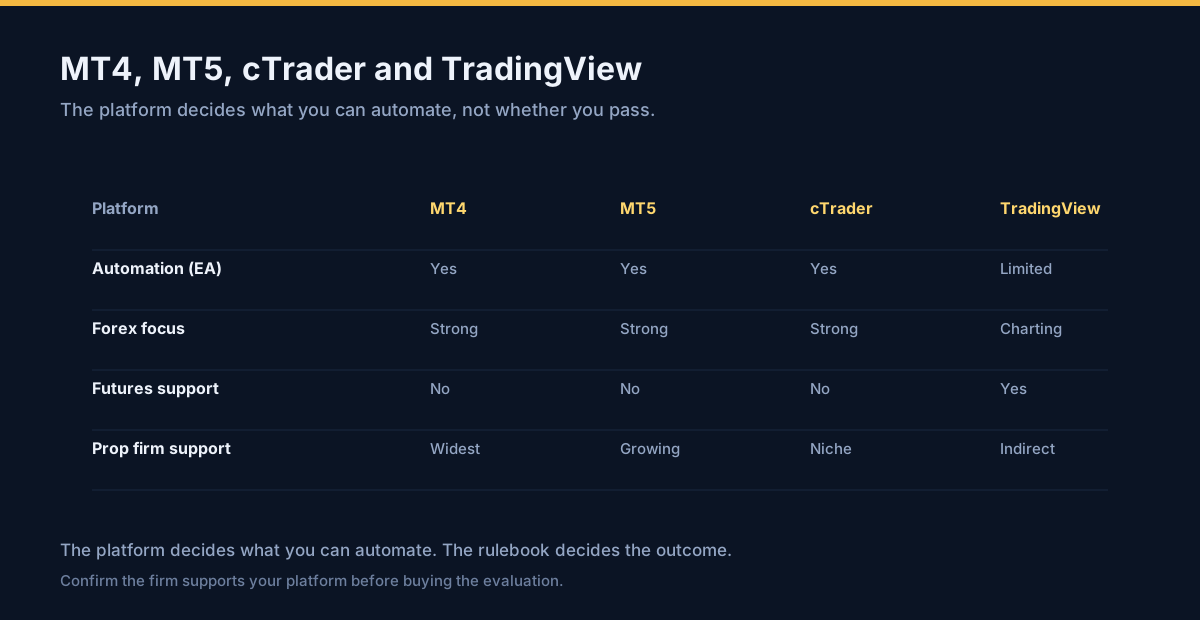
Most evaluations are traded on MetaTrader, cTrader or the firm's own platform, because that is where the account exists. Some firms or their brokers allow a TradingView connection; many do not. The practical consequence is a two-platform workflow:
| Job | Where it happens |
|---|---|
| Marking structure, levels and the idea | TradingView |
| Deciding the stop and target, and checking the ratio | TradingView's position tool |
| Entering the trade | The firm's execution platform |
| Actually holding the stop and target | The execution platform — not TradingView |
The last row is the one that fails accounts. Any time you analyse in one place and execute in another, the stop has to be re-entered on the execution side. If that is a habit you find unreliable, the fix is a written pre-entry checklist rather than more discipline: something that says, in order, enter, set stop, set target, confirm on the chart, with the confirmation step being the one you never skip.
The related trap is the trailing stop, which on MT5 lives in the terminal and stops trailing the moment the terminal is closed — the same client-side limitation that makes a drawn level a weak substitute for a placed order.
Alerts are not stops
An alert fires a notification. Whether that notification becomes an action depends entirely on infrastructure you control: your device being awake, a webhook endpoint being reachable, a third-party service being up. On a Friday release with a dozen alerts firing, the gap between "alert sent" and "position closed" is not a rounding error.
What a stop needs to be
A stop that protects an account has to live somewhere that is always on and always connected — a resting order on the broker's server. Alerts are for noticing; stops are for limiting. Using the first as the second is how a small loss becomes a breach of the daily drawdown.
If your workflow genuinely needs automation around the clock, that is what a VPS is for; what an evaluation actually needs from one is a separate question from what a marketing page will sell you.
A short checklist for the two-platform workflow
Plan on TradingView
Levels, stop, target, ratio. Take the screenshot if it helps you commit to the plan.
Copy the levels across as numbers
Write the two prices down before you switch platforms. This is the step that stops the plan drifting once the trade is live.
Enter with both legs in the ticket
Stop and target at entry, so there is no unprotected interval.
Confirm on the execution chart
Check the lines are where you intended. This is the step people skip when they are confident, which is precisely when it is worth doing.
Never let the platform decide the stop
If a stop is missing, the correct response is to add it immediately, not to watch the trade until it resolves.
Frequently asked questions
The FAQ block covers how to place the position tool, whether TradingView places real orders, whether it works with prop firm accounts, whether alerts count as stops, and how to read the ratio. Related: setting a stop loss in MT5, setting a take profit in MT5 and daily drawdown explained.
How do I add a stop loss in TradingView?
Does TradingView place real orders?
Can I use TradingView with a prop firm account?
Is a TradingView alert the same as a stop loss?
What is the position tool's risk/reward number telling me?
Have a question before you commit?
Ask us anything about your firm, your account size or whether a passing service suits you. Two ways to reach us, both answered by a person: Telegram @voraspas, or email support@elitepropx.com. No forms, no queues.
Ready to pass your prop firm challenge?
Flat $220 per evaluation — we trade it for you and hand over a funded account. No hidden cuts, no monthly fees. Send your firm and account size on Telegram or by email and we will confirm availability, the current rules and the timeline.